As your camera needs grow and you add more VOSKER cameras, organization becomes just as important as coverage. A few cameras are easy to keep track of, but once you start monitoring several areas, finding the right camera quickly can take more time than it should.
That is why VOSKER is introducing Camera Grouping. The feature becomes available to users with three or more cameras on their account, regardless of which plan or license they use. Camera Grouping helps organize cameras by location, property, area, or purpose, giving users a cleaner way to manage cameras on Desktop and a simpler way to find the cameras they need from Mobile.
Maybe you need to check a camera at a front gate, review activity near equipment, look at a fuel storage area, or pull up a camera from a specific job site or property. Without a clear way to organize cameras, everything can start to feel like one long list.
For anyone managing three or more VOSKER cameras, Camera Grouping makes it easier to navigate a growing camera fleet and quickly get to the right camera.
Here’s how it works.
Organize Cameras by Location, Property, or Purpose
Every multi-camera setup is different. A construction company may want one group for each job site. A farm may want groups for gates, fuel storage, livestock areas, and machinery sheds. A property manager may want cameras organized by building, entrance, or remote location.
Camera Grouping gives you that flexibility.
Instead of scrolling through every camera in your account, you can organize cameras in a way that matches how you actually use them. That makes it easier to find the right camera, check the right area, and keep your setup organized as you add more coverage.
Full Camera Group Management on Desktop
The full Camera Grouping experience is available on Desktop.
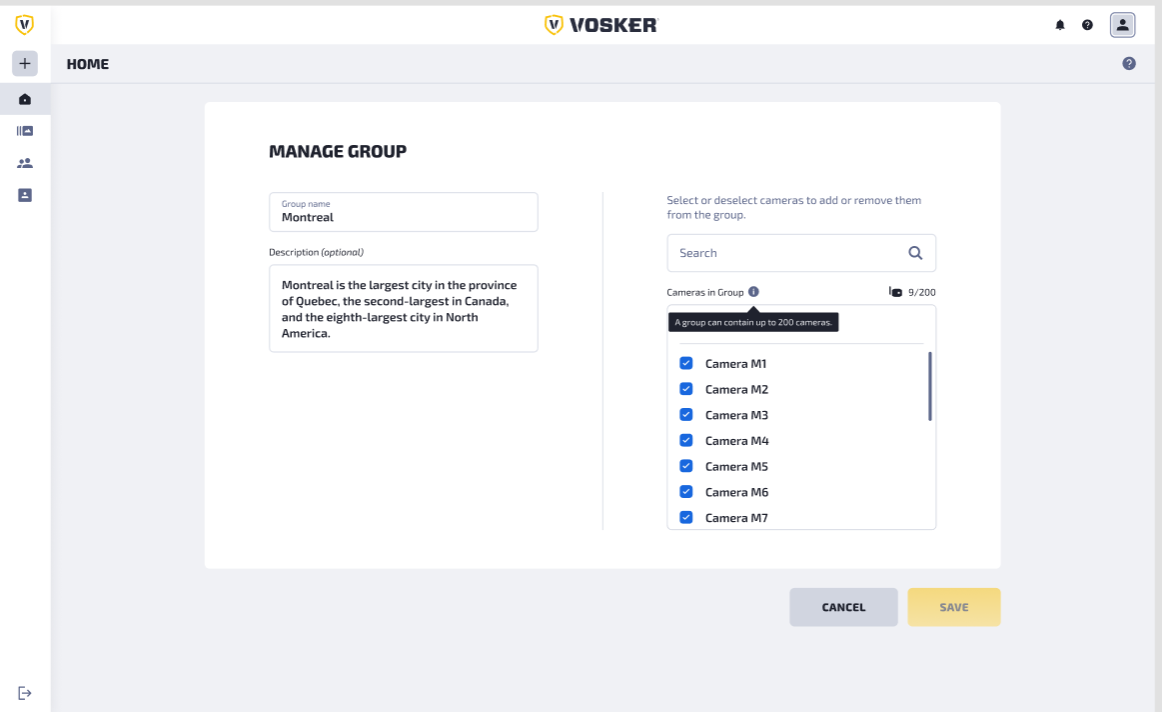
From Desktop, users can create and name camera groups, assign cameras to groups, move cameras between groups, and rename groups as needed. You can also add or remove cameras from groups and view your cameras organized by group.
This is where the main setup and management happens. If your operation changes, you can adjust your groups to match. For example, you might create a group for a temporary construction site, move cameras into a new group when a project starts, or rename a group when a location changes.
The goal is simple: give multi-camera users a better way to organize cameras without making the process complicated.
View Camera Groups from Mobile
The Mobile experience is designed to keep camera access simple while giving users visibility into the groups created on Desktop.
On Mobile, users can view the list of available camera groups, see which cameras belong to each group, and access cameras directly from their group. Any group changes made on Desktop are reflected on Mobile, so the camera organization stays consistent across platforms.
This is especially helpful when you are away from the office or checking cameras from the field. Instead of searching through a long list, you can open the app, find the right group, and access the camera you need faster.
Desktop Handles Setup, Mobile Keeps It Easy to View
For this first version, Mobile is a view-only experience.
That means group creation and group management are handled on Desktop. Users will not create groups, rename groups, assign cameras, remove cameras, or move cameras between groups from Mobile.
This keeps the Mobile experience and easy to use. Desktop gives users the full management tools, while Mobile gives users quick visibility and access to their organized cameras.
For a small business, that can mean the site manager organizes and manages camera groups from Desktop, while a site supervisor uses the Mobile app in the field to quickly find and view the cameras they need. It gives each role access to the part of the experience that fits how they work day to day.
Easier Navigation as Your Camera Fleet Grows
Camera Grouping was built with multi-camera users in mind. A few cameras may be easy to remember, but as your setup grows, a long camera list can become harder to manage.
Grouping cameras gives your setup more structure. You can organize cameras in a way that matches your operation, whether that is by job site, farm, storage yard, property, entrance, equipment area, or another location. That makes it easier to move through your setup and quickly find the camera you need.
If you are checking a gate camera, reviewing activity near equipment, or looking at a specific property, the right group can help you get there faster. The more cameras you add, the more that organization matters. Camera Grouping helps make VOSKER easier to use as your security setup expands.
Keep Your Cameras Organized as You Grow

Camera Grouping gives users managing several VOSKER cameras a simpler way to stay organized across Desktop and Mobile. You can create and manage groups on Desktop, then view those same groups and access cameras from Mobile when you are in the field.
By organizing cameras by location, property, area, or purpose, Camera Grouping makes it easier to find the right camera as your setup grows.
Camera Grouping is available to users with three or more cameras on their account, regardless of which plan or license they use. That makes it a practical tool for anyone managing cameras across job sites, farms, storage yards, remote properties, or multiple locations.